

Download PDF to Word with OCR – Fast, Accurate PDF Conversion Tool
Overview: Why PDF to Word with OCR Stands Out
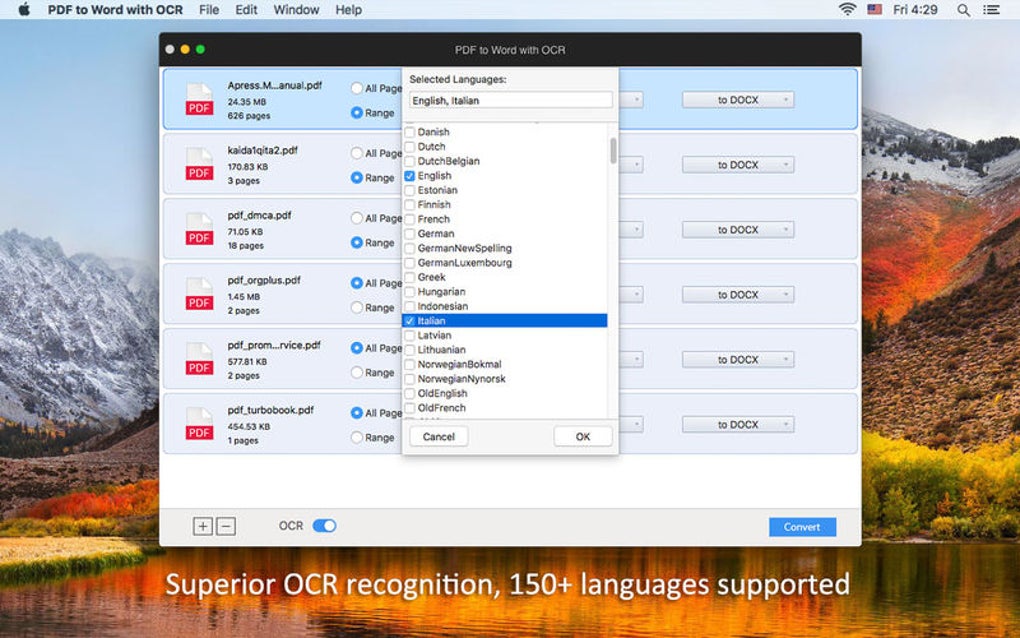
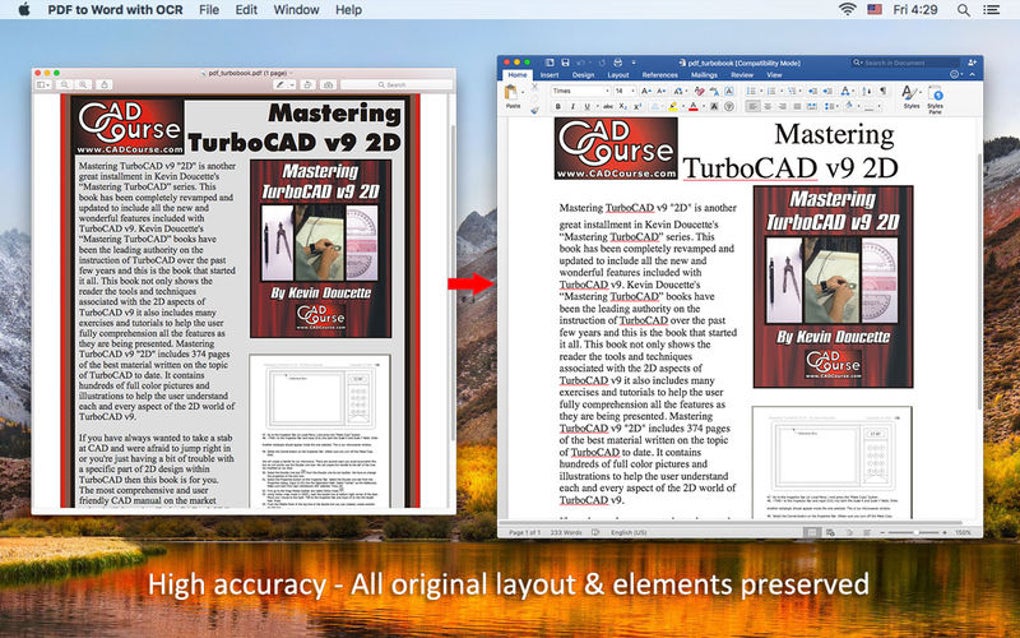
Converting PDF documents into editable Microsoft Word files has become a routine need for students, professionals, and businesses alike. PDF to Word with OCR, developed by Enolsoft Co., delivers a comprehensive solution that not only transforms standard PDF files into DOC or DOCX formats but also leverages advanced optical character recognition (OCR) to extract text from scanned images and password‑protected PDFs (once the password is supplied). The software’s core advantage lies in its ability to recognize more than 150 languages, making it a truly global tool for multilingual documents. Whether you’re handling contracts, academic papers, or legacy scanned archives, the conversion process remains swift, preserving original layouts, fonts, and images with minimal quality loss.
Speed is another hallmark of this application. Batch conversion capabilities allow users to process dozens of files simultaneously, a feature that saves valuable time for offices handling large volumes of paperwork. The user interface is clean and intuitive, eliminating the steep learning curve that many competing converters impose. While the program cannot bypass PDF passwords, it respects encryption standards by requiring the correct password before any conversion begins, ensuring compliance with security policies. Overall, PDF to Word with OCR offers a robust, reliable, and user‑friendly experience that addresses the most common pain points of PDF conversion.
Key Features That Power Your Document Workflow
- High‑accuracy OCR for over 150 languages, including Asian scripts and Cyrillic.
- Batch conversion support – convert multiple PDFs to Word in one click.
- Preserves original formatting, images, tables, and hyperlinks.
- Supports both DOC and DOCX output formats for maximum compatibility.
- Secure handling of encrypted PDFs (requires password entry).
- Fast processing engine – typical conversion under 5 seconds per page.
- Simple drag‑and‑drop interface for quick file selection.
- Built‑in preview mode to verify results before saving.
- Automatic language detection to streamline OCR setup.
- Regular updates that add new language packs and performance tweaks.
Each of these features has been crafted with real‑world usage in mind. The OCR engine, for instance, utilizes deep learning models that adapt to varying font styles and image qualities, delivering text extraction rates that often exceed 98% accuracy. The batch conversion feature is particularly valuable for legal firms and academic institutions that need to digitize extensive archives without manually processing each file. By preserving hyperlinks and embedded objects, the software ensures that the resulting Word document remains as functional as the original PDF, reducing the need for post‑conversion editing. Moreover, the automatic language detection reduces setup time; users simply load a scanned PDF, and the tool identifies the appropriate language pack, launching OCR instantly.
Installation & Usage Guide: From Download to First Conversion
Step‑by‑Step Installation
Getting started with PDF to Word with OCR is straightforward. After navigating to the official Enolsoft website, click the “Download” button for your operating system. The installer size is under 50 MB, ensuring a quick download even on slower connections. Run the executable (Windows) or .dmg file (macOS) and follow the on‑screen prompts: accept the license agreement, choose an installation folder, and let the wizard copy the necessary files. A brief system check confirms that the required .NET framework (Windows) or compatible macOS version is present; if not, the installer offers to download the missing components automatically.
Once installed, launch the application from the desktop shortcut or the Start menu. The first launch may request permission to access your Documents folder—grant this to enable seamless file handling. On macOS, you may need to approve the app in System Preferences > Security & Privacy due to Apple’s notarization requirements.
How to Convert a PDF to Word
The conversion workflow is designed for speed. Click the “Add Files” button or simply drag a PDF onto the main window. For batch operations, select multiple files or an entire folder. If the PDF is scanned or image‑based, the OCR toggle automatically activates; you can also manually select a language from the drop‑down menu if automatic detection fails. For encrypted PDFs, a prompt will appear asking for the password—enter it and continue.
After files are loaded, choose the output format (DOC or DOCX) and the destination folder. Hit “Convert.” The progress bar displays real‑time status, and once complete, a summary window lists any files where layout adjustments were necessary. You can open the converted Word document directly from the summary to verify accuracy. If you notice minor formatting issues, the built‑in “Edit in Word” button opens the file in Microsoft Word for quick fixes.
Compatibility, Pros & Cons, and Real‑World Performance
PDF to Word with OCR is built to run on the most common desktop platforms. The software supports Windows 10, Windows 11, and Windows Server editions, as well as macOS 10.15 (Catalina) and later. While a mobile version is not currently offered, the desktop application can be used on Windows tablets and MacBooks, ensuring flexibility across workstations.
Pros
- Exceptional OCR accuracy across a wide range of languages.
- Fast batch processing saves time for high‑volume tasks.
- Preserves complex layouts, tables, and hyperlinks.
- User‑friendly interface with drag‑and‑drop support.
- Secure handling of encrypted PDFs (requires password).
- Regular free updates improve stability and add language packs.
Cons
- No native mobile app for iOS or Android.
- Cannot remove password protection without the original password.
- Occasional minor layout shifts in heavily graphic‑rich PDFs.
- One‑time license fee; no free perpetual version.
Frequently Asked Questions
Can PDF to Word with OCR handle handwritten notes?
The OCR engine is optimized for printed text and clear typed fonts. Handwritten notes are recognized only if they are legible and printed in a high‑contrast scan. For best results, use a clean, high‑resolution image; otherwise, manual correction in Word may be necessary.
Is there a trial version available?
Yes, Enolsoft offers a 14‑day free trial that allows conversion of up to 10 pages per file. This lets users evaluate OCR quality and interface usability before purchasing the full license.
What file size limits can the program process?
There is no strict size cap; however, extremely large PDFs (over 500 MB) may require additional RAM and could take longer to process. The software recommends at least 8 GB of RAM for optimal batch performance.
Does the software retain embedded images and charts?
Yes, the conversion engine extracts and embeds images, charts, and vector graphics directly into the Word file, preserving visual fidelity. In rare cases where a graphic is part of a scanned page, OCR extracts it as an image rather than editable vector data.
Can I convert PDFs back to the original format after editing in Word?
While PDF to Word with OCR focuses on one‑way conversion, you can use Microsoft Word’s built‑in “Save as PDF” feature to recreate a PDF after editing. For exact replica of the original layout, a dedicated PDF creator may be needed.
Conclusion & Call to Action
In a market flooded with generic PDF converters, PDF to Word with OCR distinguishes itself through its multilingual OCR engine, batch processing speed, and meticulous preservation of document structure. The occasional layout tweak is outweighed by the time saved when converting large collections of scanned files. Whether you are a legal professional digitizing case files, an academic researcher handling multilingual journals, or a business needing to edit contracts quickly, this tool offers the reliability and accuracy that modern workflows demand.
Ready to transform your PDFs into fully editable Word documents? Download PDF to Word with OCR now and take advantage of the 14‑day free trial. Experience secure, fast, and accurate conversion that lets you focus on content, not format.
PDF to Word with OCR delivers a professional-grade conversion experience, especially for scanned multilingual documents. The interface is intuitive, batch processing is lightning‑fast, and the OCR accuracy exceeds expectations. Minor layout variations in graphic‑heavy PDFs are the only notable drawback. Overall, a solid 4.6‑star rating for anyone needing reliable PDF editing capabilities.
- Pros: High OCR accuracy, batch conversion, layout preservation.
- Cons: No mobile app, occasional minor layout shifts.







